Step 4: Preparing to run the model
Step 4: Preparing to run the model
This and subsequent steps assume that you are using the single-window Run-Time Environment. This is the default, so it is the one that you will be using if you have installed Simile and not changed your Preference settings. If the windows that appear when you come to run the model differ from the ones shown here, then please go to the "Edit" menu, select the "Preferences" item, and then select the "Use single-window Run-Time Environment" option.
1. Run the model
- Open the Model menu
- Select the Run item.

Simile creates a new window: the execution window. This contains the controls for running the model; a list of the variables in the model; and an area where any of a variety of tools for showing model results can be displayed.
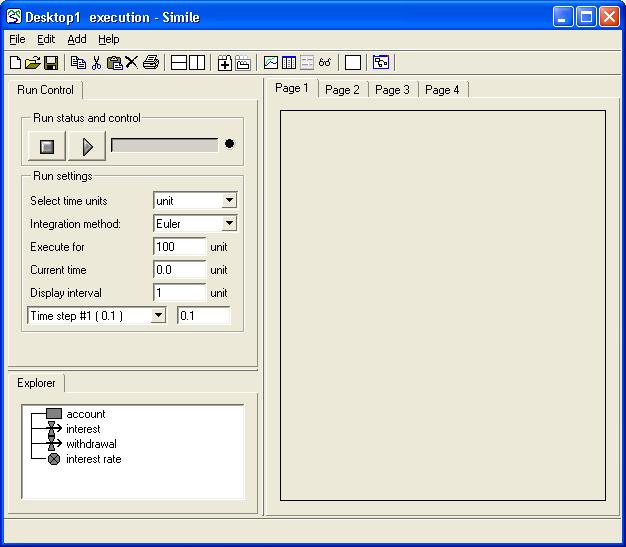
2. Change the time step
Simile supplies a default time step of 0.1 when you first run a model. In natural science, a time step shorter than the time unit results in greater mathematical accuracy, but here we are dealing with an unnatural example; a bank paying compound interest on the balance of the account at the start of each year.
The above screenshot was taken from Simile v4; in v5 and later, the run settings are displayed on a separate tab within the run control notebook. Click on this tab to get at them, and then on the Run Control tab again to get the main controls back.
- Change the value for Time step #1 from 0.1 to 1.
This is because we want to use a time step of 1 year rather than the default value of 0.1 years.
3. Change the duration of the simulation run
- Change the value for Execute for from 100 to 10.
This is because we want to run the model for just 10 years at a time.