
Main menu
You are here
Working with model diagrams : Controlling the amount of detail
Controlling the amount of detail shown in the model diagram
By default, Simile displays all the elements in the model diagram (except for ghost links): compartments, flows, variables, influence arrows, labels, etc. However, you may want to suppress the display of some of the elements to make the diagram less cluttered and less confusing, especially if you are showing a fairly complicated model to someone else for the first time.
Simile enables you to control:
- which types of elements are displayed; and
- the levels of submodel nesting that are displayed for each type of element.
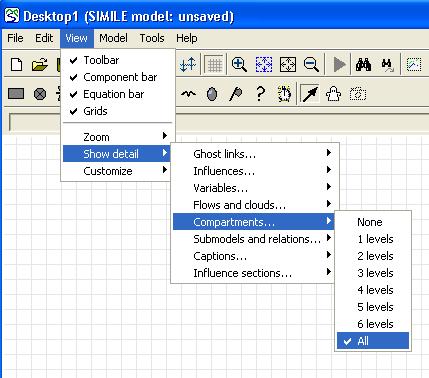
The first submenu for the Show detail item in the View menu enables you to select the type of element whose display you want to change. You can then select the submodel nesting level from a further submenu.
If you select:
None |
then that type of element is not displayed at all. |
| All |
then it is displayed at all levels. |
1levels |
it is displayed only at the top (Desktop) level. |
2 levels |
it is displayed at the Desktop level and the top level of submodel (but not the submodels nested inside the top-level submodels). |
The elements are arranged in order, such that turning off the view of compartments also turns off the view of variables at the same level. Turning off the view of variables also turns off the view of influence arrows, and so forth. This is to avoid producing nonsensical or misleading views.
Note that they apply within each window that displays part of the model. So, if you set submodel display to 1 level, so only the outlines of the submodels are displayed, then click on a submodel's boundary to open a new window for it, that window will show the contents of the submodel down to the next level.
There are three other mechanisms for limiting the amount of detail.
- If you open the properties dialogue box for a particular submodel and go to the Advanced tab, there is a checkbutton labelled "hide contents" in the Appearance panel. If you check this, the submodel will be displayed as an empty box, while other submodels at the same level still display their contents.
- At the bottom of the "Show detail" menu is a submenu for "Influence sections". This can be set to "Local", meaning only influences fully inside the same submodel are shown, or "Terminal" meaning only those actually connecting a component are shown, as well as "All", the default setting.
- As described in Customizing the diagram's appearance, you can set the default colour of a component's outline or fill to transparent. This is useful because it will then normally be invisible, but will show up if it is selected or highlit or becomes incomplete.
If you adjust the level of detail in a model's display, then save the model, these settings will be restored when the model is reopened.
- Printer-friendly version
- Log in or register to post comments